



The default is that WinTree has three different ways to 'put out' information.
- Printing on paper
- Send per e-mail
- On the basis of settings print on paper or send per e-mail.
For the first two options WinTree will always use the selected option for 'putting out'. WinTree will then not look at how the settings in the document and/or contact are set. Read the separate descriptions for Printing and E-Mail. In case the third option is selected, the processing will be dependent on the settings. See also the scheme in the description Print options in the Program Settings.
In the menu File -> Print (Pre-defined output) an overview is shown of all available documents and the choice can be made which document has to be 'put out'. This way is mainly practical to print overviews or make a reprint of for example an invoice, for which WinTree determines how the output takes place. Open the menu File -> Print (Pre-defined output) to select a document.
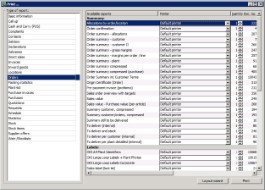


The opened window shows two columns. In the column on the left are the type of reports. Click on one of the types and in the column on the right the available reports of the type are shown.
 |
Only the documents that are ticked in the column 'Show' in the Program Settings, are shown here and can be printed. |
The default selected printer and the amount can be altered. Select the desired document and click on [Print]. depending on the chosen document, a print window is opened that contains the frame 'Selection' and the frame 'Settings'.
Frame 'Selection'
The picture below is the print selection window of an invoice.
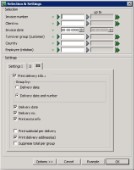
Dependent on the document, in this frame selections can be made for example invoice number or a date. A selection can be made for one number or date by giving the value in the left field. The right input field can remain empty. In case a client number has been used as selection criteria then a search window can be opened by clicking on the left green arrow. In this search window there can be searched on matchcode. After selecting the correct client, the client number will be shown in the print selection window.
A range 'From- up to' can be selected by entering the first number of the range (or date) in the left field and in the right field the last number (or date) of the range. This way of selecting gives a non-interrupted range.
It is also possible to select an interrupted selection range. Click for this behind the selection criteria on the double green arrow. A separate input window will be shown in which four separate numbers or dates can be entered. If necessary, you can click on the double green arrow again to enter the next four numbers or dates. Close the window after entering the separate numbers or dates via [Return]. In the print selection window at the selection criteria both input fields are grey.
By entering a selection criterion, only the documents with this selection criterion are printed. For example: when printing an invoice with selection criterion on invoice number 4 then only the invoice with invoice number 4 is printed. Between the description of the selection criterion and the input fields, there is a green V by default. Click on this V and a red X will be shown. In case then a selection criterion is selected, this criterion will NOT be included when printed. For example: when printing an invoice with selection criterion on invoice number 4 where now a red X is shown, all invoices will be printed except for the invoice with invoice number 4.
Combinations of selection criteria are possible. The more selection criteria have been entered, the lesser there will be printed. Entering no selection criteria means that all invoices will be printed.
Frame 'Settings'
In this frame checkboxes can be ticked or unticked. The default values of these checkboxes are saved in the program settings. The settings can, depending on the selected document, be divided over multiple tab pages. All settings can be altered before printing.
|
Use the print setting 'Reprint recently used lines' in case a reprint needs to be made of for example an invoice. In case the invoice is already printed and you did not tick this setting, a pop up will show with the message: "No data found for this selection". Tick the setting and the document will be printed. |
 Button [Example]
Via [Example] a print example of the document is placed on screen. In case a range has been set up for one of the selection criteria then the example will be divided over multiple pages. Close, before printing the document, the example window via [x].
|
There are circumstances where the example on screen does not correspond with the real print. In case the example shows strange data, the document needs to be printed on paper. If the data on paper still does not correspond with the expectations, support can be asked from TSD. |
Button [Cancel]
Button [Options]
With help of this button the entered selection can quickly be cleared. Click on the button and choose the option 'Clear selection'. The entered selection will directly be deleted. The option 'Export (Crystal reports)' is used to export data to for example Microsoft Excel. Read for this the separate manual Export.
Button [OK]
With pre-defined output, after clicking on this button Wintree will determine in which way the document will be put out. With this the output preference of the document is used and settings of the contact. See the scheme in the description Printing options in the Program Settings.
Must the output be Printing, then the document will be printed on the selected printer. Must the output be E-mail then the document will be sent per e-mail. With this the same settings (show pop-up, adding attachments) are used when E-Mail a document.